Session 4: “Designing Your First Coin”
Architect:
Syed Shayaan Haider - Markhor3D
Learning Objectives
In this session, the students will:
- Create a Simple Coin Design in TinkerCad: Use basic shapes to design a coin.
- Follow a Demonstration: Observe the teacher modeling the steps to create a coin.
- Personalize Their Coin: Add a simple initial or symbol to make it unique.
- Develop Basic Digital Skills: Practice placing, resizing, and grouping shapes with guidance.
- Feel a Sense of Accomplishment: Experience the joy of creating their own design.
Teaching Aids
Required Materials:
- Computers or Tablets:
- One per student or pair, with TinkerCad already logged in and ready to use.
- Preferably touch-screen devices for easier interaction.
- TinkerCad Accounts:
- Use the pre-logged-in accounts from the previous session.
- Interactive Whiteboard or Projector:
- For demonstrating steps in TinkerCad.
- Visual Aids:
- Posters or slides showing step-by-step instructions with images.
- Assistants or Volunteers:
- Additional adults to help guide students during the session.
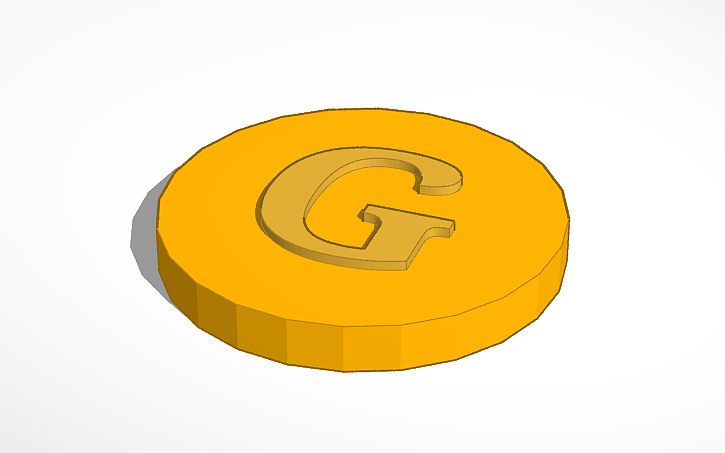
- Sample Finished Coin:
- An example of a simple coin created in TinkerCad and 3D printed. (Sample stls attatched).
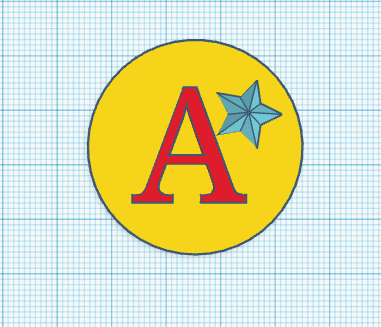
- Circle Coin.
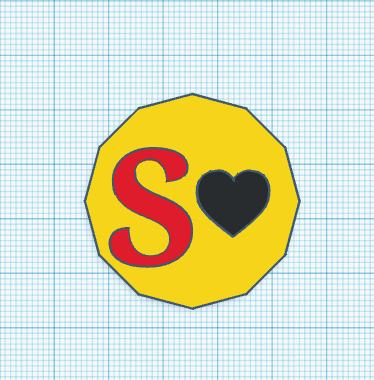
- Polygon Coin.
- An example of a simple coin created in TinkerCad and 3D printed. (Sample stls attatched).
Structure and Lesson Plan (Total Time: 50 minutes)
1. Introduction and Recap (5 minutes)
-
Greet the Students:
- “Hello, everyone! Are you excited to create something special today?”
-
Review Previous Session:
-
“Last time, we had fun playing with shapes in TinkerCad. Who remembers how to add a shape?”
-
Allow a few students to respond.
-
-
Introduce Today’s Activity:
- “Today, we’re going to design our very own coin! It’s like making your own special treasure.”
2. Demonstration by the Teacher (10 minutes)
-
Explain the Purpose:
- “I’ll show you how to make a simple coin in TinkerCad. You can watch me first, and then we’ll all make our own coins together.”
- Keep it precise and brief to allow more time for the students.
-
Step-by-Step Demonstration:
-
Step 1: Creating the Base of the Coin
-
“First, we need a shape for our coin. We’ll use a cylinder because it’s round and flat. But you can choose any shape you want! A cube, a triangle even a heart! You are the Kings and Queens they are your coins.”
-
Action: Drag a shapefrom the shape menu onto the workplane.
-
Adjusting Size:
- “Let’s make our coin a good size. We’ll make it 45 millimeters wide and 4 millimeters tall.”
- Action: Resize the cylinder by typing in the dimensions or dragging the resize handles.
-
-
Step 2: Adding an Initial or Simple Symbol
-
“Now, let’s personalize our coin by adding a letter or symbol. I’ll add the letter ‘A’ for example.”
-
Adding Text:
- “We can find the ‘Text’ shape in the shapes menu.”
- Action: Drag the ‘Text’ shape onto the workplane.
- Typing the Letter:
- “I’ll type ‘A’ here.”
-
Adjusting Size and Position:
- “Let’s make the letter smaller to fit on the coin.”
- Action: Resize the text to be smaller than the coin.
- “Now, we’ll move it on top of the coin.”
- Action: Drag the letter onto the top center of the cylinder.
-
Adjusting Height:
- “We want the letter to stick out a little bit. Let’s make it a bit taller.”
- Action: Adjust the height of the letter to be slightly taller than the coin.
-
-
Step 3: Grouping the Shapes
-
“Now, we’ll stick the shapes together so they become one object.”
-
Action: Select both shapes and click on the ‘Group’ button.
-
-
Changing Colors (Optional):
-
“We can change the color to see it better, but remember, the 3D print will be in one color.”
-
Action: Change the color of the grouped object.
-
-
-
Engage Students During Demonstration:
-
“Do you see how the letter sits on top of the coin?”
-
“Any questions about what we did?”
-
3. Guided Practice: Students Create Their Coins (25 minutes)
-
Step-by-Step Guidance:
- “Now, it’s your turn! Let’s make our coins together step by step.”
-
Assist Students Through Each Step:
-
Step 1: Adding the Cylinder
-
“Everyone, drag a cylinder onto your workplane.”
-
Assistants Help Students as Needed
-
Adjusting Size:
- “Resize your cylinder to make it about this big.”
-
-
Step 2: Adding Your Initial or Symbol
-
“Now, find the ‘Text’ shape and drag it onto the workplane.”
-
“Type the first letter of your name, or choose a simple shape you like.”
-
Adjusting Size and Position:
-
“Make the letter smaller so it fits on your coin.”
-
“Move it on top of the coin.”
-
-
Adjusting Height:
- “Make the letter a bit taller so it stands out.”
-
-
Step 3: Grouping the Shapes
-
“Select both the coin and your letter.”
-
“Click on the ‘Group’ button to stick them together.”
-
-
-
Teacher and Assistant Support:
-
Move around the room to help students individually.
-
Areas of Assistance:
-
Adding shapes.
-
Typing letters.
-
Resizing and positioning shapes.
-
Grouping shapes.
-
-
-
Encourage Creativity:
- “If you’d like, you can add a simple shape instead of a letter, like a star or heart.”
-
Reminders:
- “Remember to ask for help if you’re not sure what to do.”
4. Saving Designs and Preparing for Printing (5 minutes)
-
Saving Designs:
- “Let’s make sure to save our designs so we can print them.”
- Action: Show students how to save within TinkerCad.
- You can skip the exporting function in TinkerCad. As a class owner you will have access to the designs. As the class owner you can collect the .stl files yourself for printing. (refer to the TinkerCad Guide)
-
Collecting Files:
- “I’ll collect all your designs from TinkerCad so we can get them ready for printing.”
-
Explain the Next Steps:
- “In our next class, we’ll see how these coins are printed with the 3D printer!”
5. Sharing and Celebration (3 minutes)
-
Group Sharing:
- “Who would like to show us their coin design?”
-
Display on Projector:
- If possible, share a few students’ designs on the main display.
-
Positive Feedback:
-
“Wonderful job! Your coin looks amazing!”
-
“I love how you added your favorite shape!”
-
6. Conclusion and Recap (2 minutes)
-
Summarize the Session:
- “Today, we designed our very own coins using TinkerCad.”
-
Reinforce Key Points:
- “We learned how to add a cylinder, personalize it with a letter or symbol, and group the shapes together.”
-
Express Excitement for the Next Session:
- “Next time, we’ll watch as the 3D printer brings your coins to life!”
-
Closing Encouragement:
- “You all did an excellent job! I can’t wait to see your creations in real life!”
Additional Notes for the Teacher
- Guide to TinkerCad (link to separate document)
-
Preparation:
-
TinkerCad Setup:
- Ensure all devices are ready with TinkerCad open to the design workspace.
-
Sample Coin:
- Have a physical example of a 3D-printed coin to show students.
-
Visual Aids:
-
Prepare step-by-step slides or posters to support the demonstration.
-
Pair students who may benefit from working together.
-
Keep the demonstration concise to allow ample time for students to work on their own designs.
-
-
Key Vocabulary
-
Coin: A small, round object, like money, but in this case, a personalized creation.
-
Cylinder: A 3D shape with two circular faces connected by a curved surface.
-
Text Shape: A tool in TinkerCad that lets us add letters or numbers.
-
Group: Combining shapes so they become one object.
Next Session.
Previous Session.
For suggestions, improvements, and corrections, feel free to reach out at shayaanhaider@gmail.com