Session 3: “Tinker Time: Building with Virtual Blocks”
Architect:
Syed Shayaan Haider - Markhor3D
Learning Objectives
In this session, the students will:
- Experience TinkerCad: Begin exploring TinkerCad by placing basic shapes into the workspace.
- Manipulate 3D Shapes Digitally: Learn to move, resize, and change the colors of shapes in a virtual environment.
- Develop Fine Motor Skills: Improve hand-eye coordination through interacting with digital tools.
- Encourage Creativity and Fun: Enjoy experimenting with shapes and colors in a playful, stress-free setting.
- Build Confidence with Technology: Gain familiarity with using a computer or tablet for creative purposes.
Teaching Aids
Required Materials:
- Computers or Tablets:
- One per student or pair, with internet access.
- Preferably touch-screen devices for easier interaction.
- TinkerCad Accounts:
- Set up a class account or individual accounts ahead of time.
- Use the “Classroom” feature in TinkerCad for easy management.
- Interactive Whiteboard or Projector:
- For demonstrating TinkerCad to the whole class.
- Visual Aids:
- Slides showing key icons and functions in TinkerCad (e.g., shape menu, move tool, resize handles).
Structure and Lesson Plan (Total Time: 50 minutes)
1. Introduction and Review (5 minutes)
-
Greet the Students:
- “Hello, everyone! Are you ready for more ‘Tinker Time’ fun today?”
-
Review Previous Sessions:
- “We’ve learned about different 3D shapes like cubes, spheres, and cylinders. Today, we’ll play with these shapes on the computer!”
-
Introduce TinkerCad:
- “TinkerCad is a special program that lets us build and play with shapes on the computer, just like building blocks!”
2. Setting Up TinkerCad (10 minutes)
-
Accessing TinkerCad:
-
Step 1: Guide students to open TinkerCad on their devices.
- “Let’s all open the TinkerCad website together.”
-
Step 2: Log In:
- Use pre-set class accounts or guide them through logging in.
- “I’ll help you log in so we can start tinkering!” (refer to the TinkerCad teacher’s guide).
-
-
Demonstrating the Interface:
-
Use the Projector:
- Show TinkerCad on the interactive whiteboard.
-
Key Areas to Highlight:
- Shape Menu:
- “Here are the shapes we can use. See the cube, cylinder, and sphere?”
- Workplane:
- “This blue grid is where we’ll place our shapes.”
- Navigation Tools:
- Simplify or skip complex navigation; focus on basic actions.
- Shape Menu:
-
-
Simplify the Interface:
- Encourage students to focus on adding shapes and basic manipulation.
- “Today, we’ll just have fun putting shapes on the workplane and changing them!”
3. Hands-On Activity: Exploring Shapes in TinkerCad (25 minutes)
-
Distribute Devices:
- Ensure each student or pair has a device ready with TinkerCad open.
-
Guided Exploration:
-
Adding Shapes:
-
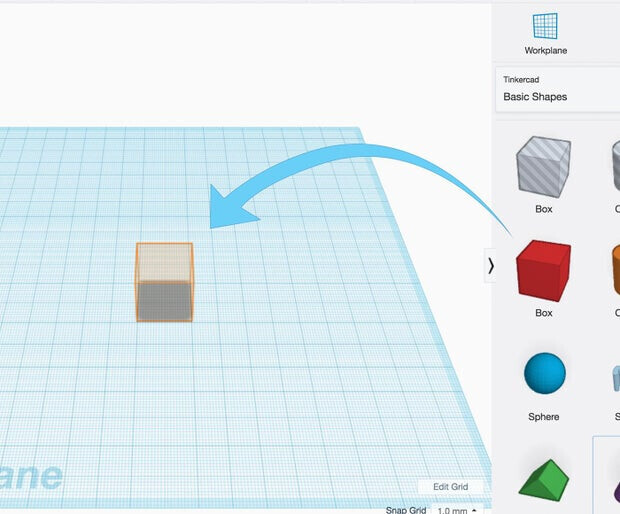
“To add a shape, click or tap on the shape you like and drag it onto the blue grid.”
-
Demonstrate adding a cube.
-
-
Moving Shapes:
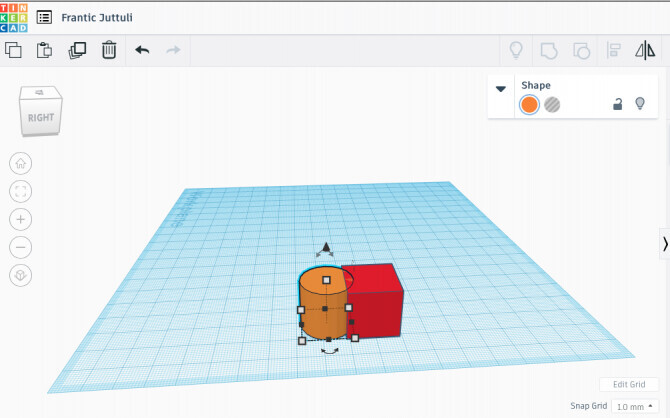
- “To move a shape, click and drag it to where you want it.”
-
Resizing Shapes:
- “To make a shape bigger or smaller, grab one of these little squares on the corners and drag it.”
- “To make a shape bigger or smaller, grab one of these little squares on the corners and drag it.”
-
Changing Colors:
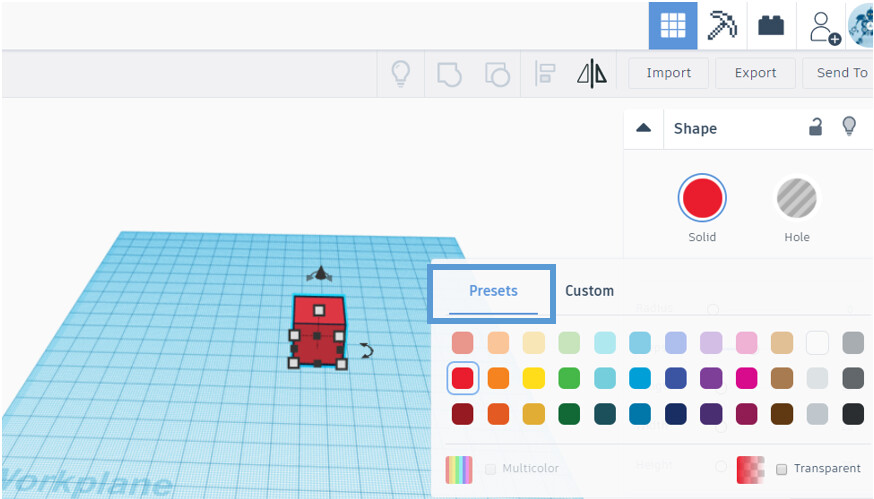
- “You can change the color of your shape by clicking on it and then choosing a new color here.”
- “You can change the color of your shape by clicking on it and then choosing a new color here.”
-
Rotating Shapes (Optional):
- If appropriate, show how to rotate a shape.
-
-
Encourage Free Play:
- “Now it’s your turn! Try adding different shapes, moving them around, changing their sizes and colors. Have fun!”
-
Teacher and Assistant Support:
-
Move around the room to assist students.
-
Common Areas of Help:
-
Navigating the interface.
-
Adding and manipulating shapes.
-
Solving any technical issues.
-
-
-
Prompts to Inspire Creativity:
-
“What happens if you make the sphere really big?”
-
“Can you stack two shapes on top of each other?”
-
“Try changing the colors to make a rainbow of shapes!”
-
-
Safety and Etiquette Reminders:
-
“Be gentle with the devices.”
-
“Ask for help if you’re unsure what to do.”
-
4. Sharing and Celebration (7 minutes)
-
Group Sharing:
- “Who would like to show us their colorful shapes?”
-
Display on Projector (Optional):
- If possible, share some students’ screens on the main display.
-
Students Share Briefly:
-
“I made a big red cube and a tiny blue sphere!”
-
“Look, I changed the colors to make a pattern!”
-
-
Positive Feedback:
-
“Amazing job! I love how you used different sizes!”
-
“Your shapes look so bright and colorful!”
-
5. Conclusion and Recap (3 minutes)
-
Summarize the Session:
- “Today, we had so much fun playing with shapes in TinkerCad!”
-
Reinforce Key Points:
- “We learned how to add shapes, move them around, make them bigger or smaller, and change their colors.”
-
Express Excitement for Future Sessions:
- “Next time, we’ll use these shapes to design our very own special treasure!”
-
Closing Encouragement:
- “You all did a fantastic job! Keep thinking about the amazing things you can create!”
“Creativity is intelligence having fun.”
— Albert Einstein
Additional Notes for the Teacher
- Guide to TinkerCad (link to separate document)
- Preparation:
-
TinkerCad Accounts:
- Set up a teacher account and create a classroom environment in TinkerCad.
- Add students to the class to manage access easily.
- Refer to TinkerCad guide
-
Device Readiness:
-
Ensure all devices are connected to the internet and can run TinkerCad smoothly.
-
Bookmark the TinkerCad website for easy access.
-
-
Simplify TinkerCad Interface:
- Familiarize yourself with the basic functions to guide students effectively.
-
Key Vocabulary
-
TinkerCad: A simple, online 3D design program where we can play with shapes.
-
Workplane: The blue grid area where we place and move our shapes.
-
Shape Menu: The area where we select different shapes to use.
-
Resize: To make a shape bigger or smaller.
-
Rotate (Optional): To turn a shape around a central point.
For suggestions, improvements, and corrections, feel free to reach out at shayaanhaider@gmail.com