Session 2: Express and Dance with Your Robot
Session Architect: Muhammad Bilal
Session Length: 40-50 minutes
Equipment Required:
- M3D Robotics kit with display screen.
- Laptops with the on-screen gamepad pre-loaded.
- Paper and pencils for students to note down their robot’s expressions.
- A small area for the “Robot Party” activity.
Learning Objectives:
- Learn how to use different buttons on the on-screen gamepad to make the robot display various emojis.
- Understand how to combine movement with robot expressions and text.
- Introduce the “Dance” button and create a fun interaction between robots.
- Encourage creativity and teamwork through a simple, interactive “Robot Party.”
Resources:
Scratch Code File:
Grade 1 Session 2.sb3 (2.8 MB)
1. Introduction to Robot Expressions (10 minutes)
Activity:
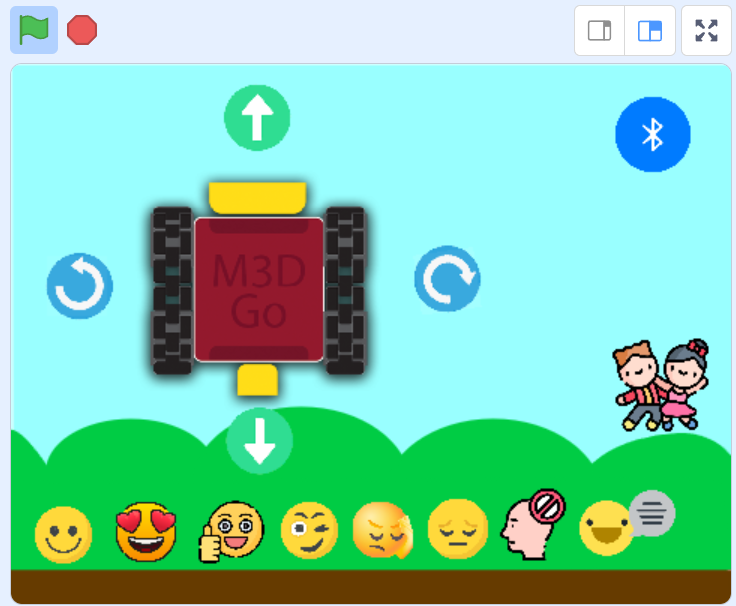
Start by introducing the idea that robots can show emotions just like people, but instead of using faces, they use a screen to display expressions. Begin by asking students to press the emoji buttons on the gamepad, but don’t connect the robot’s display just yet.
Instructions:
- You can say:
“Today, we’re going to make our robots come alive by showing emotions and talking! Just like how you smile when you’re happy, our robots can show different faces too!”
- Demonstrate how to press different buttons on the gamepad to display specific emojis on the robot’s screen. You might say:
“Let’s try making our robot show a smiley face! Go ahead and press the emoji button on your gamepad.”
-
Let the students press the buttons, but nothing will happen because the display isn’t connected yet.
-
After a few moments, you can explain:
“Hmm, why isn’t anything showing up? Just like how we use our faces to show emotions, our robot needs something to show its expressions too! Our robot needs a screen!”
-
Bring out the display and explain that it will help the robot show expressions. Then, guide the students through connecting the display to the robot, explaining where it goes and how it works.
-
After attaching the display, let them try pressing the emoji buttons again to see the smiley face and other expressions appear.
Teacher’s Role:
- Guide students as they try pressing buttons and notice that nothing happens. Use this as an opportunity to explain the role of the robot’s display.
- Walk them through attaching the display to the robot, ensuring each student connects it correctly.
- Once the display is connected, encourage the students to explore using the emoji buttons.
2. Hands-on Practice: Controlling Expressions (15 minutes)
Activity:
Students will use the gamepad to experiment with different buttons to display various expressions and text while the robot moves around. They will practice controlling the robot and making it “talk” or “express” itself.
Instructions:
-
Let students take turns controlling the robot, making it show a smiley face, a sad face, or other emojis based on what they choose.
-
They can also make the robot display text like “Let’s play!” or “I’m having fun!” by clicking the “Talk” button:

-
Encourage them to combine movement with expressions, such as showing a happy face when the robot moves forward or a sad face when it stops.
Teacher’s Role:
- Offer guidance as students explore how to control the robot’s expressions.
- Help students troubleshoot if they have difficulty using the gamepad controls.
- Keep the atmosphere fun and engaging, encouraging students to be creative with their robot’s expressions.
3. Introduction to the “Dance” Button (5 minutes)
Activity:
Introduce the special “Dance” button on the gamepad, which makes the robot do a random dance move.
Instructions:
-
You can say:
“Now, let’s make our robots dance! We have a special button here that makes the robot do a fun dance. Let’s try it!” -
Demonstrate how pressing the “Dance” button makes the robot move in a random dance pattern:
Teacher’s Role:
- Show the students how to activate the “Dance” button and encourage them to try it on their own.
- Keep the excitement up by letting students cheer for their robot’s dance moves.
4. Robot Party: Talking, Dancing, and Expressing (10-15 minutes)
Activity:
Once students are familiar with the controls, invite them to participate in a “Robot Party” where their robots will move around, interact, display expressions, talk to each other, and dance.
Instructions:
-
You may explain:
“Now that you know how to make your robot show emotions, talk, and dance, let’s have a Robot Party! Your robots can walk up to each other, say hello, show a funny face, and even dance together!” -
Let the students control their robots, making them move towards other robots, talk to them using the text feature, and express themselves with emojis.
Teacher’s Role:
- Facilitate the interaction by encouraging students to explore creative ways for their robots to “communicate” with each other.
- Walk around the room, helping students if they need assistance with the gamepad or have trouble getting their robot to respond.
5. Reflection and Wrap-Up (5 minutes)
Activity:
End the session with a short reflection where students share what they enjoyed most about making their robots talk and dance.
Reflection Questions:
- “What was the most fun thing your robot did today?”
- “How did it feel to make your robot show emotions?”
- “Did your robot say something funny or cool?”
Teacher’s Role:
- Lead the reflection, encouraging students to share their experiences and celebrate what they’ve learned.
- Reinforce how much fun it can be to control robots and use creativity to make them “come alive.”
Learning Outcome:
By the end of the session, students will have learned how to use the gamepad to make their robot display various expressions and text. They will also have practiced combining movements and expressions to create a fun, interactive experience during the “Robot Party.”
This version introduces the robot’s display in a fun and interactive way, ensuring students are fully engaged in learning how to control the robot’s expressions and interactions.