Grade 3 Robotics Lab Session 1: Robot Introduction Expedition
Architect: Muhammad Bilal
Session Length: 50-60 mins
Learning Objectives
In this session, students will:
- Understand the basic components of the robotics kit.
- Learn how to control the robot using an on-screen gamepad in Scratch.
- Develop curiosity and problem-solving skills by experimenting with the robot’s movements.
- Familiarize themselves with the environment of Scratch.
Equipment Required:
- M3D Robotics kit (including M3D Go, its attachments, and necessary connections).
- Laptops with Scratch pre-installed.
- Paper and pencils for students to document their discoveries and ideas.
- Markers and small obstacles for robot navigation.
Teaching Aids
Visual aids:
- Scratch app running on a projector for better visual aid.
- Game pad program of scratch of the “M3D Go” next to the on-screen gamepad. (See Figure 3.2)
- Projector and screen (optional for the video demonstration).
- A demonstration video of the robot in action (can be found on the M3D Go Webpage).
Resources:
Scratch Code for the session:
Grade 3 Session 1.sb3 (1.5 MB)
Perquisites:
- The teacher should be familiar with block coding in Scratch and it’s different categories of blocks. If not, we suggest using online resources to learn. We recommend the playlist by “ShiftClickLearn” on Youtube.
Introduction (10 minutes):
Begin with introduction of the topics and by setting a solid base by giving examples that they can relate to from their everyday life. You might say:
“Today, we’re going to start our adventure into the world of robots! Do you know what a robot is? Have you seen one?"
Listen to their answers and build up on them towards the next part of the session. If they are unable to think of examples, you can talk about everyday examples such as automatic doors at stores, ATM machines etc. You may continue by asking:
“Are robots just machines or something more than that?”
Again, build up on their answers to reinforce their learning. You may link their answers to the flow of the session such as:
"Well, today, we’re going to find out by exploring a real robot, and soon you’ll be controlling it yourself!”
- Show examples of how robots are used in everyday life (e.g., cleaning robots, robotic arms in factories).
- Show them pictures of industrial robots/large-scale machines and autonomous robots (inspired by media).
- Briefly explain what robots are and what their components do (motors, sensors, etc.), and the difference between the robots we mostly see in media (autonomous robots) and industrial robots (one being dependent on an operator while the other being able to sense its environment on its own).
Hands-on Exploration:
Demonstrate key parts of the robot, explaining the function of each part as you go along. Ask the students to follow along, touching the components as they are mentioned:
- Motors
- Wheels
- Battery
- Attachments
Familiarization with Scratch:
Once students have a basic understanding, guide them in small groups to open Scratch on their computers and turn on the robot.
- Show the Scratch app running on a projector screen and explain each part of the interface so that the students don’t get overwhelmed. [In preparation, if you are not familiar with Scratch, you can watch a short introductory video on its layout. You can use any resources for this you want. We recommend Scratch Basics: Episode 1 by Ampere on Youtube].
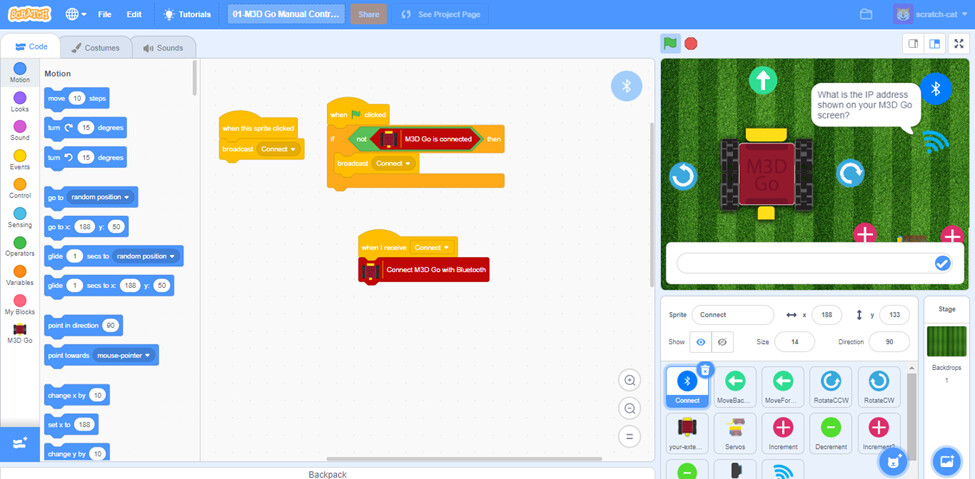
Figure 3.1: Scratch Editor
You may say something like:
“This is just like the physical controller you use to play with your toy cars. Only this time, it is on a laptop screen as you can see in the top left corner. The different colored boxes on the left side are what tell the robot what to do when you press a button”
- You may ask them to focus their attention on the controller in this first session. This will help them get familiar with the robot and its controls without overcomplicating it.
- Encourage them to hover their mouse over the digital on-screen gamepad on the top right corner and familiarize themselves with all the buttons.
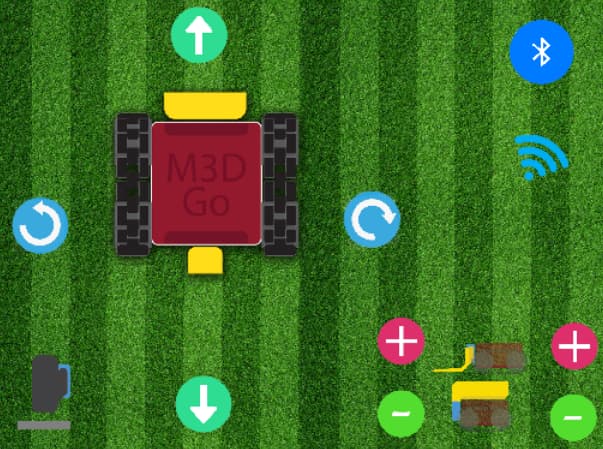
Figure 3.2: Scratch Gamepad Program
After that, show them how to connect it to their computers [Instruction video available on the M3D Go page].
Instructor’s Role:
Encourage curiosity by asking questions like:
- “What happens when you press a specific button, e.g., the forward button?”
- “How much does it move in one click?
- “What is that belt that connects the two wheels of the robot?” Students may link the appearance similar to a tank which will help familiarize them with the M3D Go robot.
Simple Activities:
- Moving the robot forward, backward, and turning.
- Provide simple tasks to students, such as driving the robot in a straight line or moving from one specific spot to another.
Guided Experimentation (20 minutes):
Allow students to explore the robot on their own, using the gamepad to control it freely. Move around the room and interact with each group, offering suggestions for what they can try next. Let them:
- Draw path/lines on paper and make the robot follow these paths.
- Race with each others’ robots.
- Experiment with uneven terrain, e.g. small obstacles, grass/carpet, and slippery surfaces, inclined surfaces.
- Provide them with all the attachments e.g. display, motors, dumper, forklift to familiarize them with the kit.
Encourage students to experiment with how they control the robot’s direction and precision.
Using Arrow Keys (5 Minutes):
Allow students to explore controlling the robot using arrow keys. Let them freely move the robot around and try different movements. As you move around the room, interact with each group, offering suggestions on what they can try:
- Guide the robot around obstacles placed in the room (e.g., books, toys).
- Create a small path or maze using classroom objects and challenge the students to navigate through it using only the arrow keys.
- Encourage them to try moving the robot in straight lines and sharp turns to see how it responds.
Reflection and Discussion (10 minutes):
Gather the students together and ask them to share their experiences:
- What was the most fun thing they did with the robot?
- Did they find anything tricky when controlling the robot?
- What would they like to see in this robot in the next class?
- How does the robot turn? How is it different from a car?
End with a reflection on the importance of robotics in solving real-world problems, linking this back to their experimentation.
Wrap-up (5 minutes):
Summarize the session by highlighting the key learning points:
“Today, you all took the first steps toward becoming robot controllers! You learned how robots move and how you can control their movements. Next time, we’ll go even deeper and see how we can program robots to do more complex things!”
Encourage students to think about what else they would like to learn about robots and share their ideas in the next class.
Glossary
- Robot: A machine designed to carry out tasks, often controlled by a human or a computer program.
- Gamepad: A device used to control a robot or other machines.
- Experiment: Trying out new things to see what happens.