Session 8: Multi-Bot Interaction – Follow the Leader
Session Architect: Muhammad Bilal
Duration: 50-60 minutes
Equipment Required:
- M3D Robotics kit
- Laptops with Scratch pre-installed
- Distance sensors for all robots
- Classroom space for bots to move around freely
Learning Objectives:
- Understand how to use the distance sensor to detect and respond to obstacles in a project-based learning session.
- Learn to code robots to interact with each other using sensor data.
- Develop a dynamic program where any bot can take the lead, reinforcing conditional logic.
- Apply previously learned concepts, such as conditionals, loops, and sensor integration, to create interactive behaviors between bots.
Resources:
Scratch Code File:
Grade 5 Session 8.sb3 (42.8 KB)
1. Introduction to Multi-Bot Interaction (10 minutes)
Activity:
Introduce the concept of bots interacting with each other. Students will work in group to create a code that allows one robot to follow another, while ensuring that either bot can act as the leader.
Instructions:
- Interactive Demonstration:
Start with a brief discussion on how humans follow each other in real life:
“Imagine you’re walking behind someone. You can see when they stop, and you stop too. If they start walking, you follow, but you don’t walk into them, right?”
This helps build a relatable connection to how the robot will follow another using the distance sensor.
- Explanation of the Task:
Explain that today, they’ll be programming one robot to follow another but, there is no defined leader.
“In this session, you’ll make sure that any bot can take the lead. It’s like you and your friend: whoever’s in front leads, and the other follows. We’ll use the distance sensor to help the robots know how far apart they are!”
Teacher’s Role:
- Ask students questions about how they decide when to stop following someone.
- Lead the discussion to connect their real-life experiences to robot behavior (following and stopping based on distance).
- Encourage students to think about the sensor values they might use to program the robots.
2. Coding the Follow-the-Leader Program (15 minutes)
Activity:
Students will create a dynamic code where either robot can become the leader, depending on which one is in front. They will decide on sensor values to determine when the following bot should move or stop.
Instructions:
- Set the Parameters for Distance:
- Introduce the idea of using sensor values to control when the robot moves or stops.
“If the sensor detects that nothing is in front of the robot, it will move forward. But if it detects another robot or anything else within a certain distance, it will stop. Let’s figure out what that distance should be.”
- Encourage students to place different obstacles in front of it to test how the value changes so that they can decide on a value to use in their code.
- Create the Code:
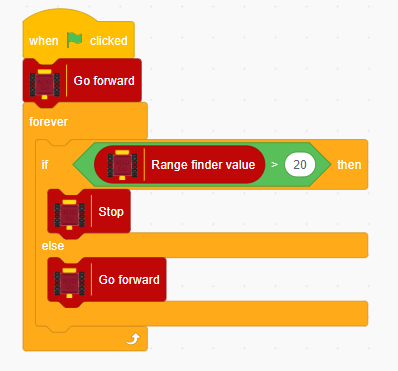
Guide students to code the robots using “if-then” blocks and the “Range Finder Value” from the distance sensor. They’ll decide on two ranges:
-
If the sensor detects no obstacle (distance is above a certain decided value), the robot will move forward.
-
If the sensor detects an object (distance is below the decided value), the robot will stop.
-
Students can use the “Move Forward” block for movement and “Stop” for halting.
You might show them an example block structure like this where the value at which the robot should stop is 20:
Teacher’s Role:
- Guide students through creating the code and setting the sensor ranges.
- Encourage them to test the values they set for the distance sensor and adjust accordingly.
- Ask questions to ensure students understand why the robot follows or stops based on sensor input.
3. Testing and Adjusting the Code (10 minutes)
Activity:
Students will test their code by placing one bot in front of the other and observing how the following bot behaves. They will experiment with switching the roles of the robots to ensure the code works dynamically.
Instructions:
- Test the Code:
- Let them place their robots together and observe how the following bot reacts to the distance from the leader. Encourage them to:
- Adjust the distance threshold if the robot stops too soon or too late.
- Switch the robots’ positions to ensure that either bot can become the leader.
- Observe and Modify:
- If the robots don’t behave as expected (e.g., moving too close or too far apart), guide students in tweaking the sensor range or movement speed to improve performance.
Teacher’s Role:
- Help students troubleshoot if the robots aren’t following correctly.
- Encourage students to think critically about how their code might need adjustments (e.g., changing sensor values or adding delays).
- Celebrate creative solutions and encourage students to test different leader-follower dynamics.
4. Adding Text and Emotion (20 minutes)
Activity:
Students will make their robots more expressive by using the “Show Text” and “Express” blocks. For example, the leader bot could display “Leading” on its screen, while the follower bot displays “Following.”
Instructions:
- Use the Show Text Block:
- Introduce students to the “Show Text” block and ask them to display messages based on whether the robot is leading or following.
“Let’s make it fun! When your robot is the leader, have it say ‘I’m leading.’ When it’s following, maybe it can say ‘I’m right behind you!’”
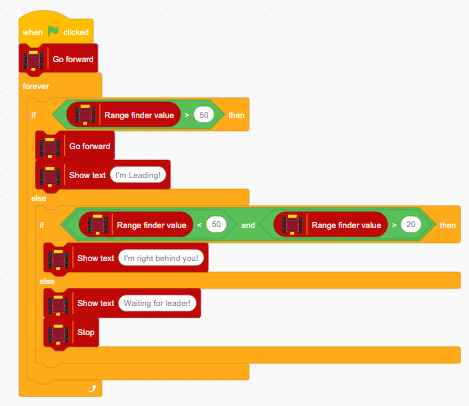
This is where it will get tricky for them. If the leading robot detects no obstacle, it will move forward and say “I’m Leading” but the robots behind it will start to move on the same code. Since they are following, they cannot say “I’m Leading”. They should say “I’m right behind you!”. For this, students have to decide on a range and check if the value is less than a certain value but still greater than another decided value.
- Ask them to code the message using “Show Text” block and when they face this problem, you can recall with them how they checked two conditions at the same time when creating a line follower:
“Remember when we made our own line follower, how we checked two conditions at the same time? We need to do the same here because the bots following cannot say that they are leading. We need to decide a range of values where the robot is following and a value at which it becomes the leader.”
If robot is supposed to move forward and become the leader at range finder value 50 and stop at 20, we can write the code as follows:
- Use the Express Block:
Once they code complete the code, they can add emotions to the robot’s display. For example, when it stops, it can show a happy face, and when it moves, it can show a focused expression.
Teacher’s Role:
- Guide students in adding creative expressions and text to their robots.
- Encourage them to think about how their robots can communicate visually as they interact with each other.
- Offer help with coding the “Show Text” and “Express” blocks.
5. Reflection and Wrap-Up (5 minutes)
Activity:
End with a group discussion where students share their experiences with making the robots follow each other.
Reflection Questions:
- “What was the most challenging part of making your robots follow each other?”
- “How did you decide what distance the following robot should stop at?”
- “What else do you think we could program our robots to do when they interact with each other?”
Teacher’s Role:
- Facilitate the discussion, encouraging students to reflect on the concepts they learned.
- Reinforce the importance of sensor data in controlling the robot’s behavior and how it applies to real-world robotics.
Learning Outcomes:
By the end of the session, students will:
- Understand how to use the distance sensor to program robots to interact with each other.
- Be able to code robots to follow each other dynamically, using sensor data to control movement.
- Build on previous knowledge of conditionals and sensor integration while adding a layer of complexity through multi-bot interaction.