Session 1: Exploring Sensors, Movement, and LED States
Duration: 50-60 minutes
Equipment Required:
- M3D Robotics kit with various sensors (e.g., distance, line)
- Laptops with Arduino IDE pre-installed
- USB/OTG cables to connect the robot to the laptop
- Projector for live code demonstration
- Paper and pencils for students to document their observations
Learning Objectives:
- Familiarize students with Arduino IDE setup and basic code structure.
- Introduce basic movement commands, travel-based movement, and independent motor control.
- Use LED blinking for feedback, representing different robot states.
- Display sensor readings on the robot’s screen.
1. Introduction to Robots, Sensors, and LED States (10 minutes)
Activity:
Kick off with a lively discussion about robots, asking questions to get students thinking creatively about technology in the real world.
Discussion Examples:
You may say:
“Think about movies or games with robots in them. How do those robots know what’s going on around them? Just like a friend knows when you’re waving at them, robots can use sensors to understand their surroundings. How do you think a robot could ‘see’ if something’s in its way?”
- Let students brainstorm ideas, then connect their responses to real-world sensors, like motion sensors in a grocery store door or proximity sensors in cars.
“So, robots have their own ‘eyes’ and ‘ears,’ and these are called sensors. Today, we’re giving our robot the power to sense the world around it. And here’s a fun part—our robot also has a tiny blinking LED!”
- Explain that the robot can use the LED to give feedback, like a visual code. For example, it can blink slowly when it’s idle and faster when it’s moving—just like how your phone’s light might blink for notifications.
Teacher’s Role:
Relate robots to everyday technology that uses similar principles, helping students to see robots as both fun and practical tools.
2. Setting Up the Arduino IDE and Code Structure (10 minutes)
Activity:
Guide students to set up the Arduino IDE and go through a simple code structure together.
Basic Code Structure:
#include <M3DGo.h>

void setup() {
    go.begin();  // Initialize the robot
}

void loop() {
    // Commands will go here
}
Discussion:
You may say:
“When you wake up in the morning, you might have a routine, right? Like brushing your teeth and eating breakfast. Well, our robot has its own ‘morning routine’ to get ready, and that’s what the
setup()function is for!”
Explain that setup() is the robot’s startup routine, and loop() is where the robot’s actions are repeatedly executed, like repeating a favorite song playlist until you stop it.
You may say:
“Think of the loop as a never-ending dance routine for the robot—it keeps going until you tell it to stop!”
Teacher’s Role:
Encourage students to relate the robot’s actions to their own routines and introduce them to the importance of code structure and comments for clarity.
3. Basic Movement and Distance Travel Commands (15 minutes)
Activity:
Introduce basic movement and travel commands, explaining how each command translates into physical actions.
Commands to Explore:
- Movement Commands:
go.forward(),go.reverse(),go.spinClockwise(),go.stop() - Travel Commands:
go.travel_cm(),go.travel_inch(),go.travel_ft() - LED Blinking Command:
go.blinkNotificationLED(milliseconds)
Example Code for Moving and Blinking LED:
void setup() {
    go.begin();
    go.blinkNotificationLED(500);  // Set LED to blink every 0.5 seconds
}

void loop() {
    go.travel_cm(30);       // Move forward 30 cm
    go.delay(2000);         // Wait 2 seconds
    go.stop();
    go.blinkNotificationLED(1000);  // Change LED blink to every 1 second
    go.delay(2000);         // Pause before repeating
}
Discussion:
You may say:
“Imagine you’re watching your friend run a relay race. You can tell how fast they’re going by how quickly they’re moving from one point to the next. With this LED, we can make our robot ‘blink’ faster or slower depending on what it’s doing—kind of like a heartbeat.”
Encourage students to experiment with LED blinking rates and observe how it gives feedback, like telling a story of what the robot is “thinking.”
- Help them understand how the values inside the parenthesis change the behavior of the instruction.
To help them understand the concept of time values smaller than a second, you can set up an activity where students use the stopwatch inside their laptop to measure how quickly there team members can blink their eyes:
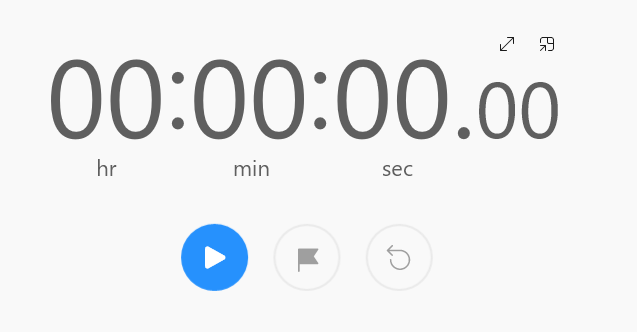
Point out the time on the far right and how it is much smaller than 1 second:
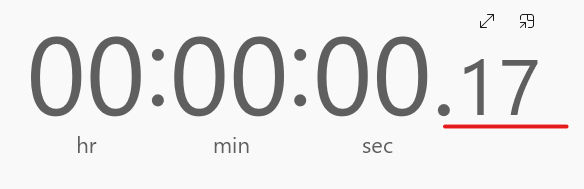
You can also relate it to things they know, like sports timers or video games, where milliseconds are often displayed during speed runs or races like F1 and MotoGP . This explanation will help them understand how milliseconds relate to time intervals in programming.
Teacher’s Role:
Help students see LED blinking as a form of communication, like how humans use facial expressions or hand signals to indicate different moods or actions.
4. Independent Motor Control and Drifting (20 minutes)
Activity:
Introduce independent motor control, showing how different motor speeds can create a unique “drifting” effect, like driving a car with one tire on ice and one on pavement.
Commands for Independent Motor Control:
go.setLeftMotor(powerPercentage)– Controls the left motor speed.go.setRightMotor(powerPercentage)– Controls the right motor speed.
Example Code for Drifting:
void setup() {
    go.begin();
}

void loop() {
    go.setLeftMotor(70);   // Set left motor at 70% power
    go.setRightMotor(50);  // Set right motor at 50% power
    go.delay(3000);        // Drift for 3 seconds
    go.stop();
}
Discussion:
You may say:
“Let’s say you’re riding a bike, but only one pedal is pushing really hard while the other is barely moving. What do you think would happen to your bike? It’d start to veer off to one side, right? This is what we can make our robot do—it’ll ‘drift’ to one side if one motor is stronger than the other.”
Let students experiment with different power levels to create their own drift patterns. Encourage them to think about how this could be useful, like turning sharp corners or adjusting a route.
Teacher’s Role:
Guide students through adjusting motor power, showing how they can use this to create customized movement paths and fine-tune navigation.
Challenge 1: LED Blink for Movement State
Task: Program the robot to blink the LED every 0.5 seconds while moving, then slow it down to blink every 2 seconds when stopped.
Example Code:
#include <M3DGo.h>

void setup() {
    go.begin();
}

void loop() {
    // Moving forward with fast LED blink
    go.blinkNotificationLED(500); // LED blinks every 0.5 seconds
    go.forward(50);               // Move forward at 50% speed
    go.delay(3000);               // Move for 3 seconds

    // Stop with slow LED blink
    go.stop();
    go.blinkNotificationLED(2000); // LED blinks every 2 seconds
    go.delay(3000);               // Stay stopped for 3 seconds
}
Challenge 2: Travel and Return
Task: Program the robot to move forward 50 cm, pause for 1 second, and then return to the starting point.
Example Code:
#include <M3DGo.h>

void setup() {
    go.begin();
}

void loop() {
    // Move forward 50 cm
    go.travel_cm(50);
    go.delay(1000);    // Pause for 1 second

    // Move backward 50 cm to return
    go.travel_cm(-50); // Negative value makes it go back
    go.delay(2000);    // Pause for 2 seconds before repeating
}
Challenge 3: Drifting Experiment
Task: Program the robot to “drift” by setting the left motor to 80% power and the right motor to 60% power. Let it drift for 3 seconds, then stop.
Example Code:
#include <M3DGo.h>

void setup() {
    go.begin();
}

void loop() {
    // Set different motor speeds to create a drift effect
    go.setLeftMotor(80);    // Left motor at 80% power
    go.setRightMotor(60);   // Right motor at 60% power
    go.delay(3000);         // Drift for 3 seconds

    go.stop();              // Stop after drifting
    go.delay(2000);         // Pause for 2 seconds before repeating
}
Encourage students to experiment with different values in each of these codes to observe how it affects the robot’s movement, LED behavior, and drifting pattern.
6. Conclusion and Reflection (5 minutes)
Reflection Questions:
You may ask:
- “How did the LED blink speed help you know what the robot was doing?”
- “What surprised you about using the drift command?”
- “Where else have you seen lights used to show different states or signals?”
Teacher’s Role:
Wrap up with a discussion on real-world applications of these concepts, like traffic lights signaling cars or power buttons showing device status. Highlight how LED indicators and customized movements are a universal part of technology, from robots to smart devices.
Learning Outcome:
By the end of this session, students will be comfortable controlling the robot’s movements, using travel distances, adjusting motor power independently, and using LED blinking as feedback. They’ll build a strong foundation in robot control, preparing them for more complex programming challenges.