Session Overview:
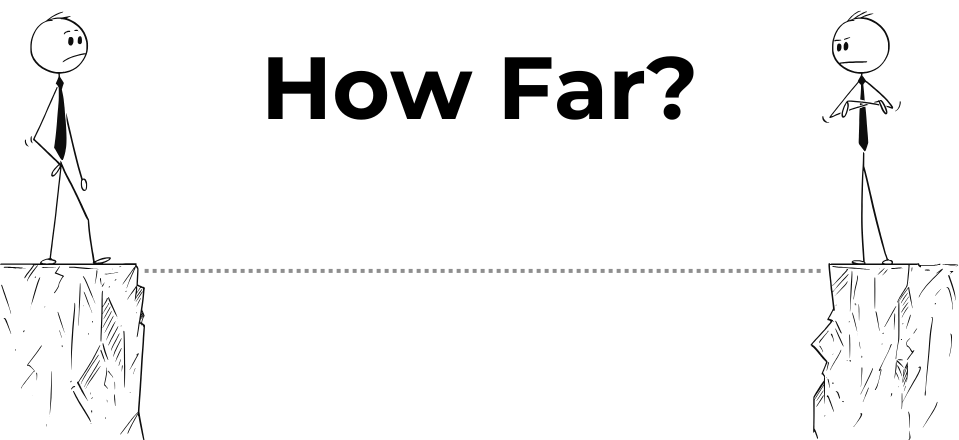
In this engaging session, students dive into exploring distance by interacting with the MeasureLab’s distance sensor. Through fun games and movement-based activities, they’ll observe how the sensor screen changes based on how close or far objects (and even themselves!) are from the sensor. By the end, students will have a playful, intuitive sense of distance, sparking curiosity about spatial relationships and everyday measurements.
Learning Objectives:
In this session, students will:
- Use the distance sensor to see how the screen changes when they or objects move closer or farther away.
- Experiment with placing themselves or objects at different distances and observe the number on the screen change.
- Develop an intuitive understanding of distance without focusing on exact measurements.
Teacher Resource:
Session File: ML19.plf (58.2 KB)
Equipment Required:
- MeasureLab with a distance sensor.
- Various objects of different sizes (e.g., toys, books).
- A clear area for students to move in front of the sensor.
- Laptop or PC for displaying distance measurements.
- Worksheets with images of different distance scenarios.
- Colouring materials (crayons, coloured pencils, markers).
Teaching Aids:
- Projector (optional).
Preparation:
This step has to be done before the session on each workstation/apparatus by the teacher/session instructor:
- Make sure that each computer has Physlogger installed and can detect the Measrelab when connected to it using the provided cable.
- Each Measurelab should have access to a power outlet for sensors that require external power. For this session, we will use the Distance Sensor which needs external power.
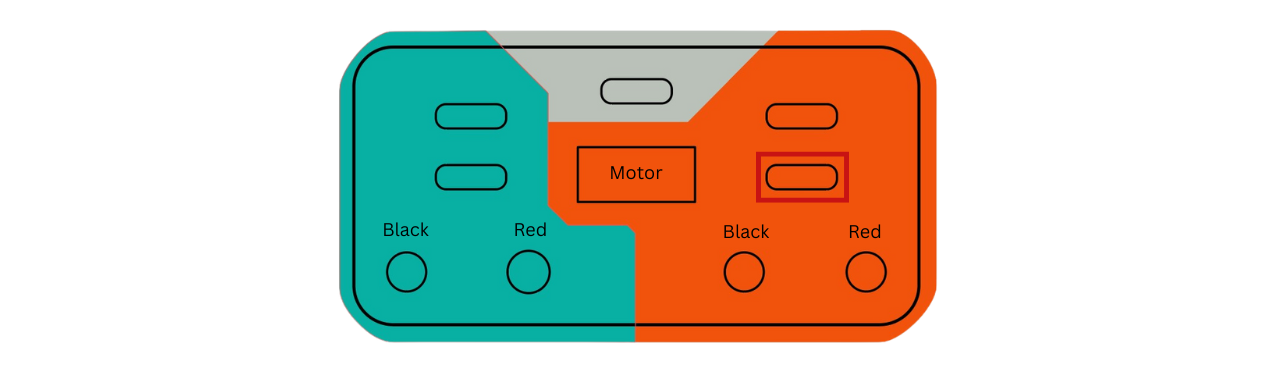
- Connect the Distance Sensor to the MeasureLab in the following port:
- Connect the Measurelab to your computer and open the provided session file.
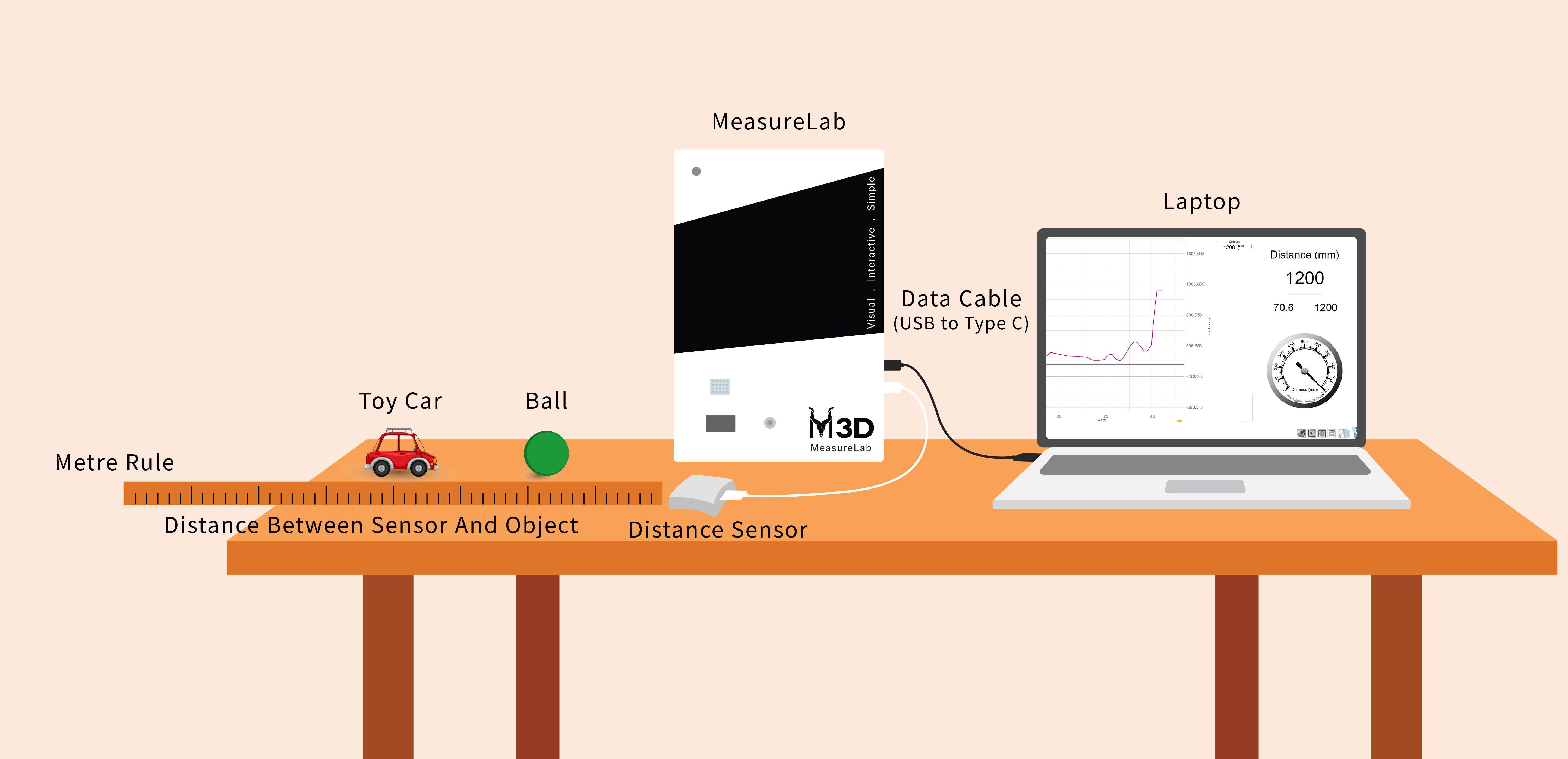
- Your setup will look like this:
Introduction: (10 minutes)
-
Introduction:
- Start by projecting images of everyday things, like a child holding a balloon close and far, or a cat near and far from a toy.
- Ask the class:
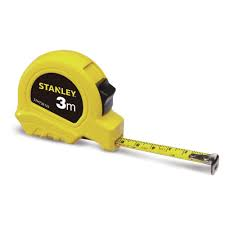
- “How do you know if something is close to you or far away from you?”
- “Yes sometimes we may use a measuring tool!”
-
-
Building Curiosity:
- You may show a picture of someone reaching for a cookie jar that’s either near or far.
- You might ask:
- “If the cookie jar is far away, what happens? Can you reach it easily?”
-
Activity Teaser:
- Introduce the MeasureLab tool and the distance sensor.
- You may say:
- “Today, we’re going to play a fun game to see how close or far we are from something. This tool will help us see it on the screen.”
-
Interactive Demonstration:
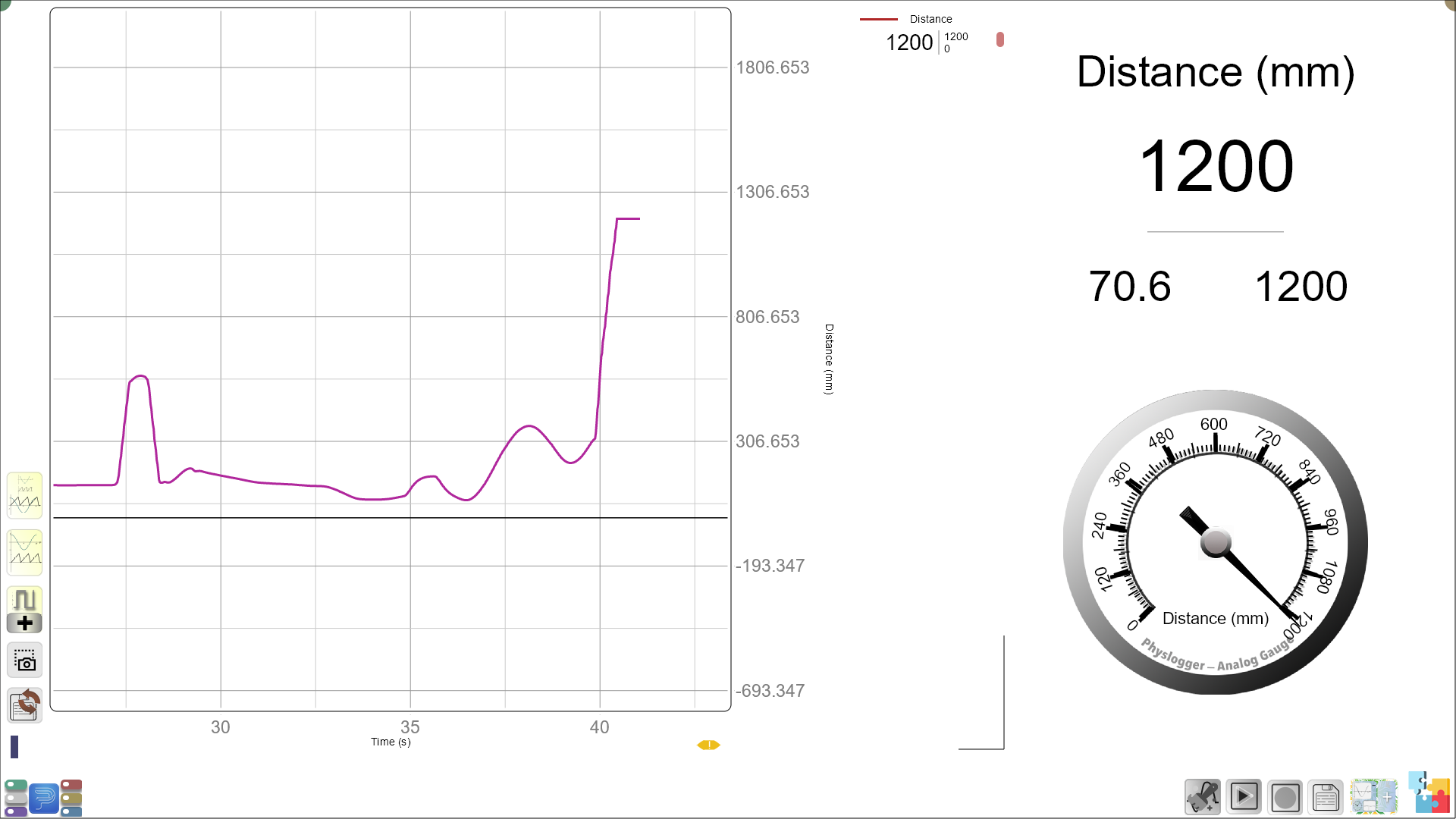
- Invite a student to stand in front of the sensor and move back and forth.
- Encourage reactions: “Whoa, look at the screen! Did you see it change when you moved?”
Hands-on Exploration: (15-20 minutes)
Distance Challenge Game:
-
Students as the Objects:
- Play a game where students become the objects. You may say:
- “Who can stand the farthest from the sensor and make the screen change the most? Let’s see!”
- Play a game where students become the objects. You may say:
-
“Dance and Freeze” Game:
- Students can dance in front of the sensor. When you say “Freeze!” they stop, and the sensor reads their distance.
-
Object Fun:
- Use playful items like a toy dinosaur or a fluffy ball. Ask students to move them near and far from the sensor. You may have a wind-up toy like a car which moves away or towrads the sensor so that students can see the distance change with the motion of the toy car.
- Encourage questions like:
- “What number does the screen show when the dinosaur is close?”
- “Does it change when we move it far away?”
Guided Activity (15-20 minutes):
Worksheet Activity:
1. “Near or Far”:
- Students will draw a picture of any object that is close or far. For example, they may draw a tree close to them, and one that is further away.
2. Number Analysis:
- Show pictures of objects at different distances.
- Students will draw a short line connecting the picture to the correct distance.
3. Classroom Adventure Map:
- Create a fun “map” of the classroom. Mark spots like “Teacher’s Desk,” “Door,” “Window,” and have students guess which spot is the closest or farthest from the sensor.
Wrap-Up and Reflection (5-10 minutes):
-
Review and Celebrate:
- Recap the fun activities:
- “We saw how things look different on the screen when we move near and far. You all did a great job finding out who was closest and who was farthest!”
- Recap the fun activities:
-
Reflection Questions:
- “What was your favourite part? Did you like being the closest to the sensor?”
- “Did any object make the number on the screen change a lot? Which one?”
-
Encouragement:
- “You were all amazing explorers today! Keep noticing things around you that are close and far. Next time, we’ll discover more fun things!”
Glossary:
- Distance: How far or close something is.
- Sensor: A tool that helps us see or feel things, like how far something is.