Session 6: “Introducing Problem-Solving: Fixing Our Designs”
Architect:
Syed Shayaan Haider - Markhor3D
Learning Objectives
In this session, Grade 2 students will:
- Understand That Designs May Not Always Print as Expected: Recognize that 3D printing can have challenges and failures.
- Identify Common Printing Issues: Learn about overhangs, supports, and why some prints fail.
- Develop Problem-Solving Skills: Modify existing designs to improve printability.
- Apply Iterative Design Process: Return to TinkerCad to adjust designs based on feedback.
- Build Resilience and Perseverance: Understand that fixing and improving is a natural part of creating.
Teaching Aids
Required Equipment:
- Examples of Failed Prints:
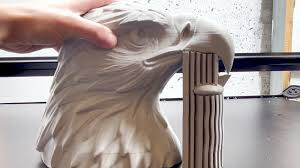
- Prints with common issues like overhangs without support, warping, or incomplete layers.
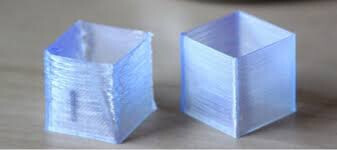
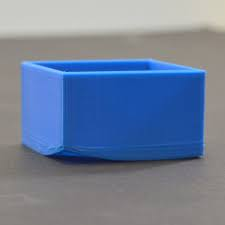
- [Google Image Search “Layer Shifting 3D Prints”].
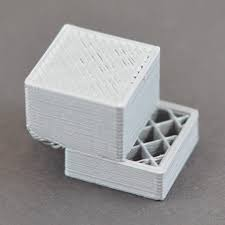
- [Google Image Search “Layer Adhesion Issues 3D Prints”].
- [Google Image Search “Failed Support FDM 3D Prints”].
- [Google Image Search “Weak walls 3D Prints”].
- [Google Image Search “Partial nozzle clog 3D Printed Parts”]
- Prints with common issues like overhangs without support, warping, or incomplete layers.
- Successful Prints for Comparison:
- The students’ decorated keychains or other well-printed objects.
- 3D Printer (Optional):
- To demonstrate live printing issues (if feasible).
- Computers or Tablets:
- One per student or pair, with internet access.
- TinkerCad Accounts:
- Students’ existing accounts from previous sessions.
- Projector and Screen:
- To display examples and demonstrate modifications.
- Whiteboard and Markers:
- For explanations and highlighting key concepts.
- Notebooks or Worksheets:
- For students to jot down ideas or sketch adjustments.
Structure and Lesson Plan (Total Time: 50 minutes)
1. Introduction (5 minutes)
-
Welcome Students:
- “Hello, everyone! Today we’re going to learn about how sometimes our 3D prints don’t turn out the way we expect, and that’s okay!”
-
Discuss the Concept of Challenges:
- “Have you ever tried to build something and it didn’t work the first time?”
- Encourage a few students to share brief stories.
-
Set the Stage:
- “In 3D printing, we sometimes have little hiccups too. Let’s find out why and how we can fix them!”
“Mistakes are proof that you are trying.”
— Anonymous
2. Examining Failed Prints (10 minutes)
-
Show Examples of Failed Prints:
-
Pass around (or display) failed prints with common issues.
-
Examples might include:
- Objects with drooping parts.
- Prints that stopped halfway.
- Warped or misshapen pieces.
- Failed Details.
- Weak Prints.
- Paper like walls in printed objects.
-
-
Encourage Observation:
- “Take a close look at these prints. What do you notice?”
-
Guide the Discussion:
-
Questions to Ask:
- “Why do you think this part is drooping?”
- “What might have caused this print to stop in the middle?”
- “How is this print different from your keychains?”
- “Why is this part so weak?”
- “Why is this part breaking so easily?”
- “Does this part omit any feature included in your design?”
- “Do you observe the thread like plastic artifacts in the print (stringing)?”
-
Possible Student Responses:
- “It looks melted.”
- “Maybe something went wrong with the printer.”
- “It doesn’t have anything underneath to hold it up.”
- “The wall was too thin in the design.”
-
3. Understanding Common Printing Issues (10 minutes)
-
Explain Overhangs and Supports:
-
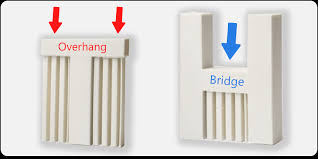
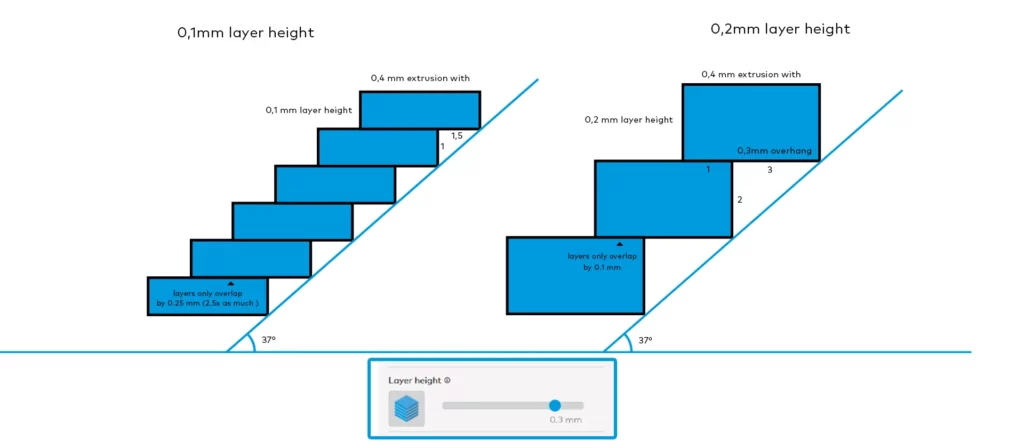
Overhangs:
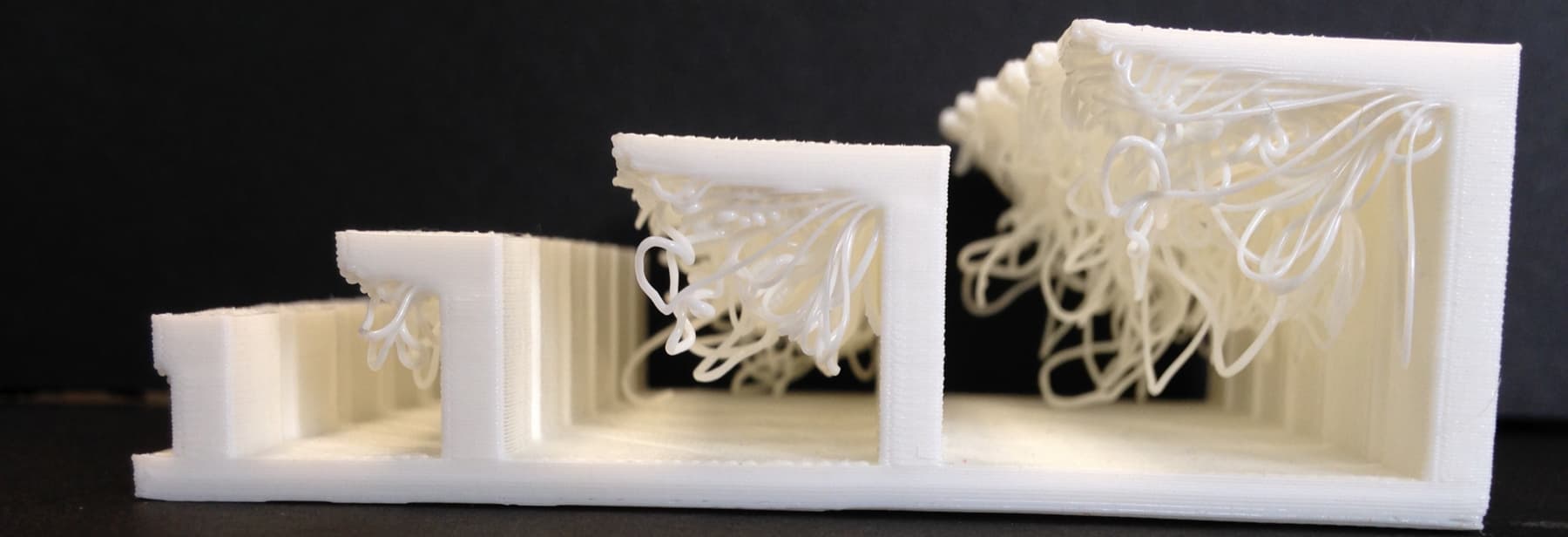
- “An overhang is when part of the design sticks out without anything underneath.”
- Use visual aids or draw on the whiteboard.
- “Imagine trying to build a bridge in the air without supports—it would fall down!”
-
Supports:
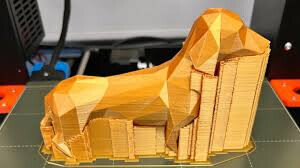
- “Supports are like temporary helpers that hold up parts of the print while it’s being made.”
- Show an example of a print with supports.
-
-
Discuss Other Common Issues:
-
Warping:
- “Sometimes prints can bend or twist if they cool down too quickly.”
- “Sometimes prints can bend or twist if they cool down too quickly.”
-
Layer Shifting:
- “If the printer moves unexpectedly, the layers might not line up.”
- “If the printer moves unexpectedly, the layers might not line up.”
-
-
Emphasize Learning from Mistakes:
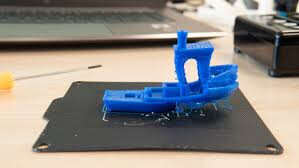
“Remember, it’s okay if things don’t work perfectly the first time. We can always try again and make it better!”
4. Modifying Designs in TinkerCad (20 minutes)
-
Return to Computers:
- “Now, let’s go back to TinkerCad and see how we can fix our designs to print better.”
-
Option A: Modify Keychain Designs
- For students who want to improve their keychains.
-
Option B: Create a Simple New Object
- For students who prefer to design something new.
-
Guided Steps:
-
Open Existing Design or Start New:
- “Log in to TinkerCad and open your keychain design or start a new project.”
-
Identify Potential Issues:
- “Look at your design and think about parts that might be hard to print.”
- Examples:
- Large overhangs.
- Very thin parts.
-
Modify the Design:
- Add Supports within Design:
- “Can we add a shape underneath to support that overhang?”
- Adjust Angles:
- “Maybe we can tilt this part so it doesn’t stick out as much.”
- Thicken Thin Areas:
- “Let’s make this piece a bit thicker so it doesn’t break.”
- Add Supports within Design:
-
Simplify Complex Features:
- “If something is very detailed and small, perhaps we can simplify it.”
-
-
Encourage Creativity and Problem-Solving:
- “Think of how you can change your design to make it easier to print while still keeping your ideas.”
-
Teacher Assistance:
- Walk around the room to help students individually.
- Provide suggestions and positive feedback.
5. Sharing and Reflecting (5 minutes)
- Group Sharing:
- “Who would like to share the changes they made to their design?”
- Students Present Briefly:
-
Allow a few students to show their modified designs on the projector or their screens.
-
Questions to Ask:
- “What issue did you find, and how did you fix it?”
- “How do you think this change will help your print?”
-
- Positive Reinforcement:
- “Great job thinking of that solution!”
- “That’s a clever way to fix the overhang.”
6. Conclusion and Next Steps (5 minutes)
-
Summarize the Lesson:
- “Today, we learned that it’s normal for designs to need adjustments.”
- “By identifying problems and making changes, we can improve our prints.”
-
Highlight the Importance of Persistence:
- “Remember, even when things don’t work the first time, we can always try again and make it better!”
Additional Notes for the Teacher
-
Preparation:
- Collect a variety of failed prints showing common issues.
-
Formative Assessment:
-
For Advanced Students:
- Explain the science behind the failures.
-
For Students Needing Extra Help:
- Provide one-on-one assistance to identify issues and suggest fixes.
-
Key Vocabulary
- Overhang: A part of a design that extends outward without support underneath.
- Support Structures: Temporary additions in a print to hold up overhangs or bridges.
- Warping: When a printed object bends or twists due to uneven cooling.
- Iteration: Making changes and improvements to a design based on feedback.
- Printability: How easy it is for a design to be successfully printed.
For suggestions, improvements, and corrections, feel free to reach out at shayaanhaider@gmail.com