Session 9: “Finalizing and Printing Group Projects”
Architect:
Syed Shayaan Haider - Markhor3D
Learning Objectives
In this session, students will:
- Evaluate their 3D designs for accuracy and functionality.
- Identify and troubleshoot problems in their printed models.
- Learn post-processing techniques such as removing supports, sanding, and painting.
- Plan the layout of their objects within the scale model house.
- Decorate and personalize their printed items.
- Repair and refine designs that did not turn out as expected.
Teaching Aids
Required Equipment:
- Computers or tablets with TinkerCad and Cura software installed.
- 3D printer(s) with printed models from Session 8.
- Sandpaper (various grits) and sanding tools.
- Pliers or tweezers for removing supports.
- Non-toxic paints and brushes.
- Safety goggles and gloves for all students.
- Projector and screen for demonstrations.
- Whiteboard and markers for discussions.
- Printed post-processing guides for each student.
Visual Aids as Examples:
- [Google Search “Removing supports from 3D prints”]
- [Google Search “Sanding and painting 3D prints”]
Structure and Lesson Plan (Total Time: 50 minutes)
1. Introduction and Recap (5 minutes)
Encouragement:
“Welcome back! Yesterday, you designed and started printing your scaled-down tools for our model house. Today, we’re going to make sure everything fits perfectly and looks amazing!”
Recap of Session 8:
- Briefly review what was accomplished in the previous session.
- Question: “Who remembers what we did yesterday?”
- Prompt: “Let’s think about the tools and furniture you designed. How did you ensure they were the right size for our model house?”
2. Evaluating Designs in Detail (10 minutes)
Action Steps:
-
Group Review:
- Action: Each group examines their digital designs in TinkerCad.
- Question: “Does your design match the scaled measurements you calculated?”
- Prompt: “Check if all parts are connected correctly and fit within your assigned room.”
-
Peer Feedback:
- Action: Groups share their designs with another group for constructive feedback.
- Question: “What do you like about their design? What could be improved?”
Encouragement:
“Reviewing each other’s work helps us make our projects even better!”
3. Evaluating Prints and Identifying Problems (10 minutes)
Action Steps:
-
Inspect Printed Models:
- Action: Distribute the printed items from Session 8 to each group.
- Question: “Does your printed item look like your design? Is it the right size?”
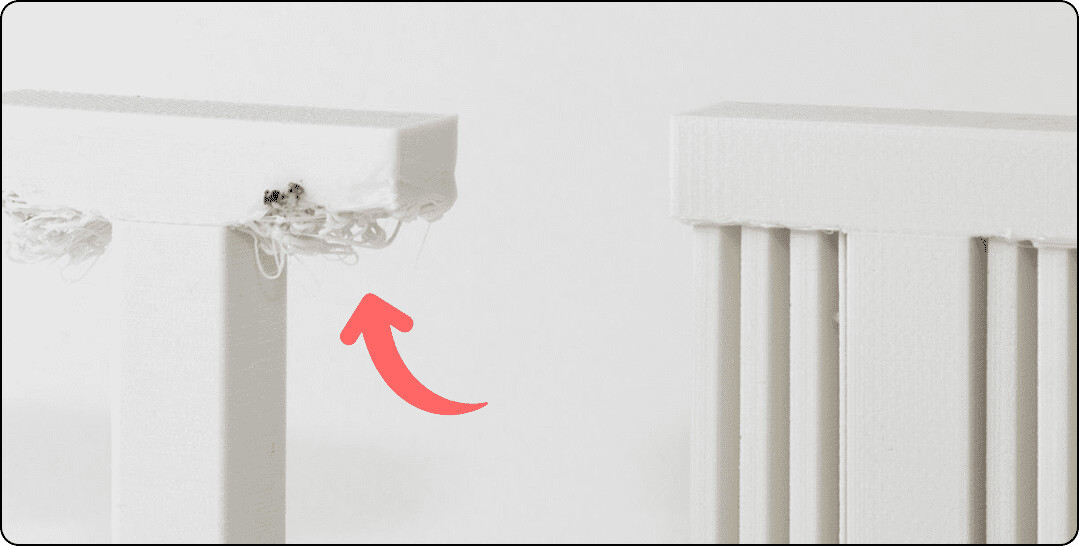
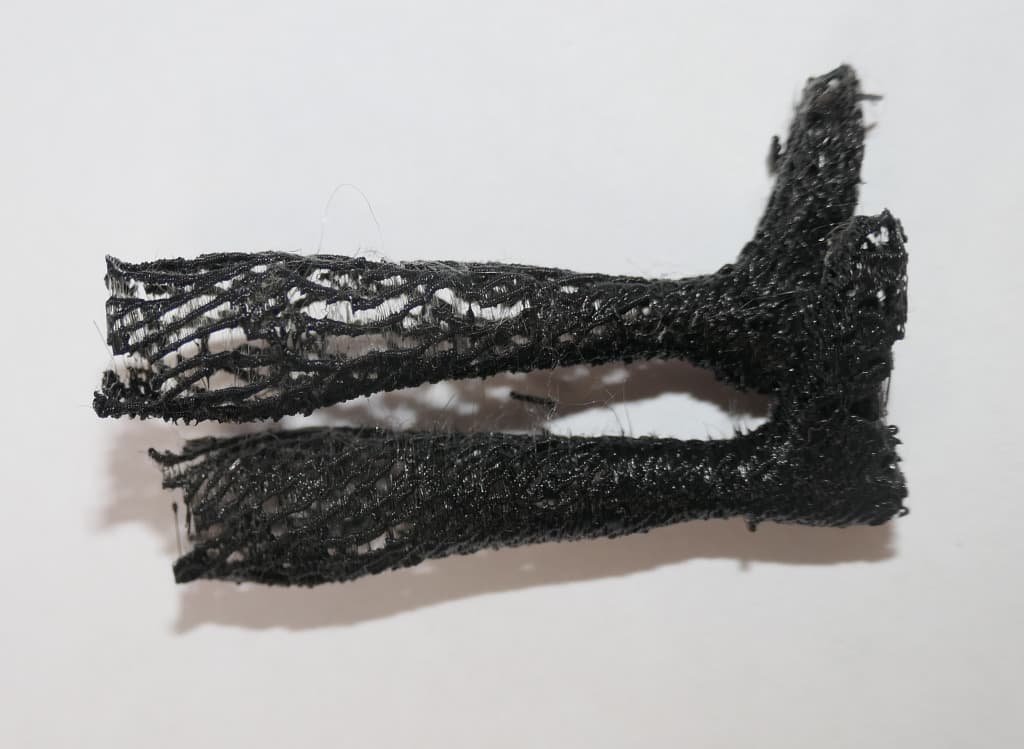
- Prompt: “Check for any broken parts, warping, or missing details.”
-
Identify Issues:
- Action: Groups list any problems they find with their prints.
- Sample Questions:
-
“Are there any parts that didn’t print correctly?”
-
“Is anything too thin or fragile?”
-
Encouragement:
“Finding problems is the first step to fixing them and making your designs even better!”
4. Post-Processing Techniques (10 minutes)
Demonstration:
-
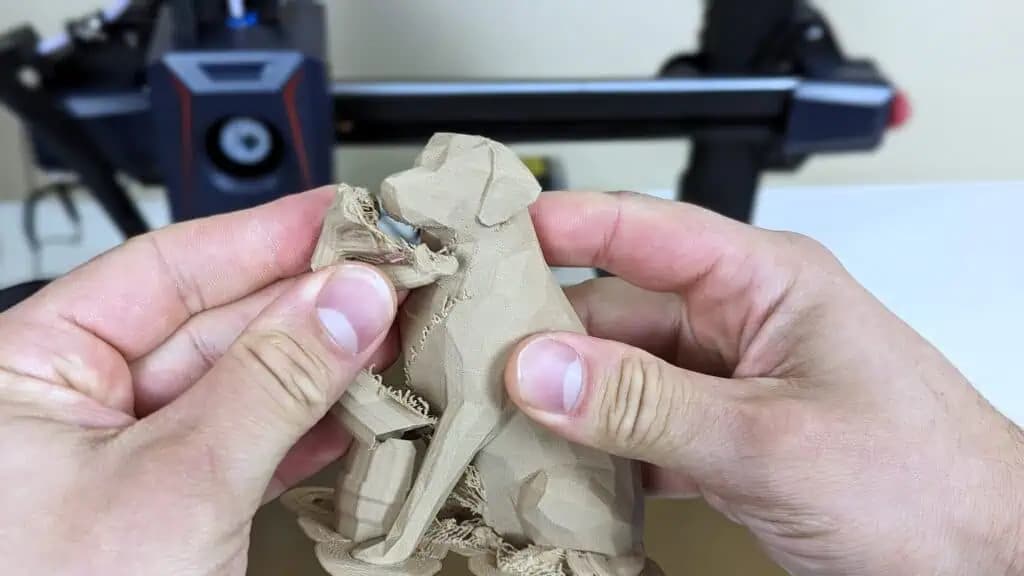
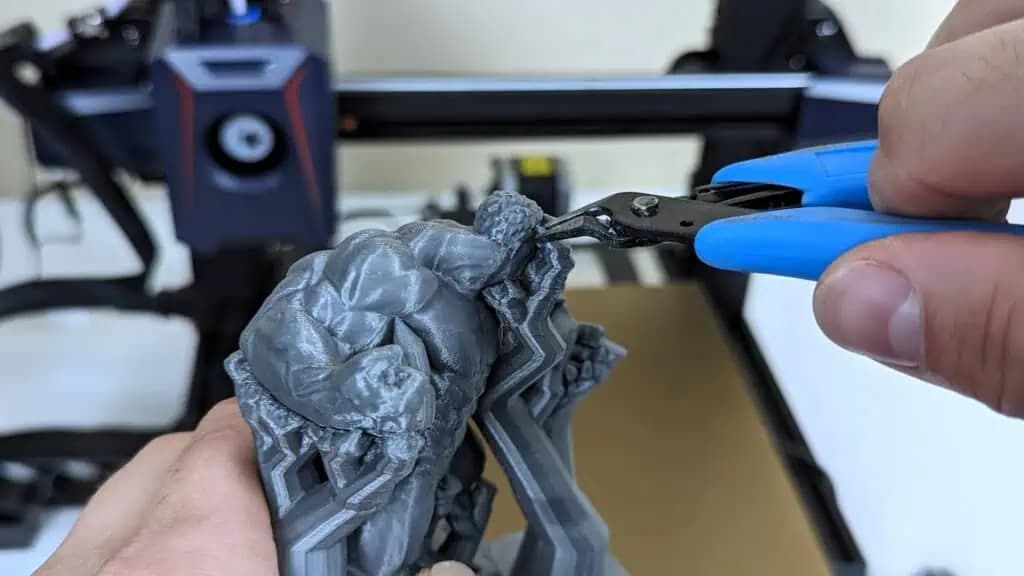
Removing Supports:
- Action: Show how to safely remove supports using pliers or tweezers.
- Safety Reminder: “Always wear your safety goggles and handle tools carefully.”
-
Sanding:
- Action: Demonstrate sanding rough edges with sandpaper.
- Prompt: “Feel how sanding makes the edges smooth.”
-
Painting and Decorating:
- Action: Show how to paint and decorate printed items using non-toxic paints.
- Question: “What colors or designs would you like to add to your tool?”
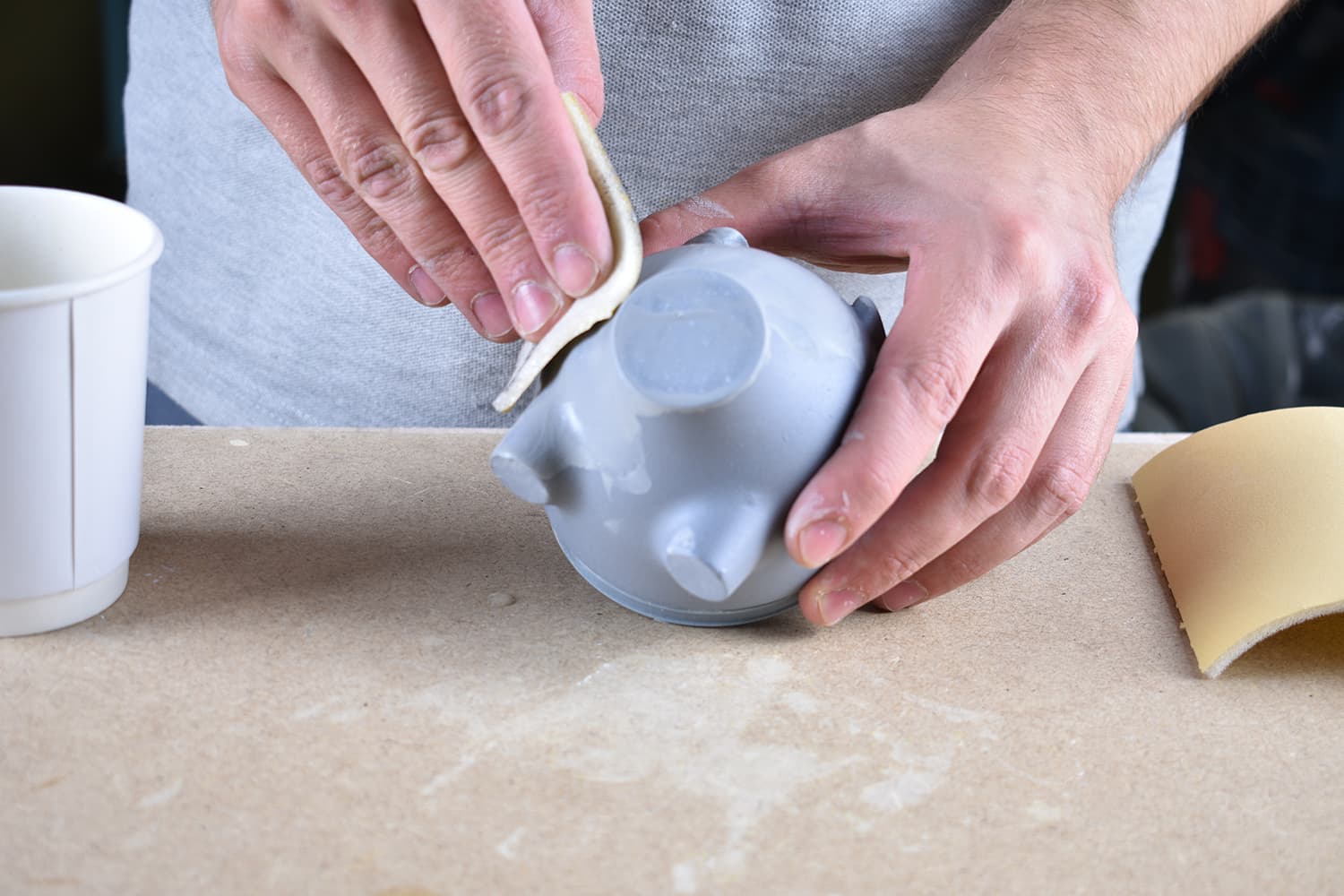
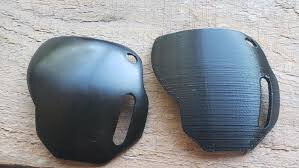
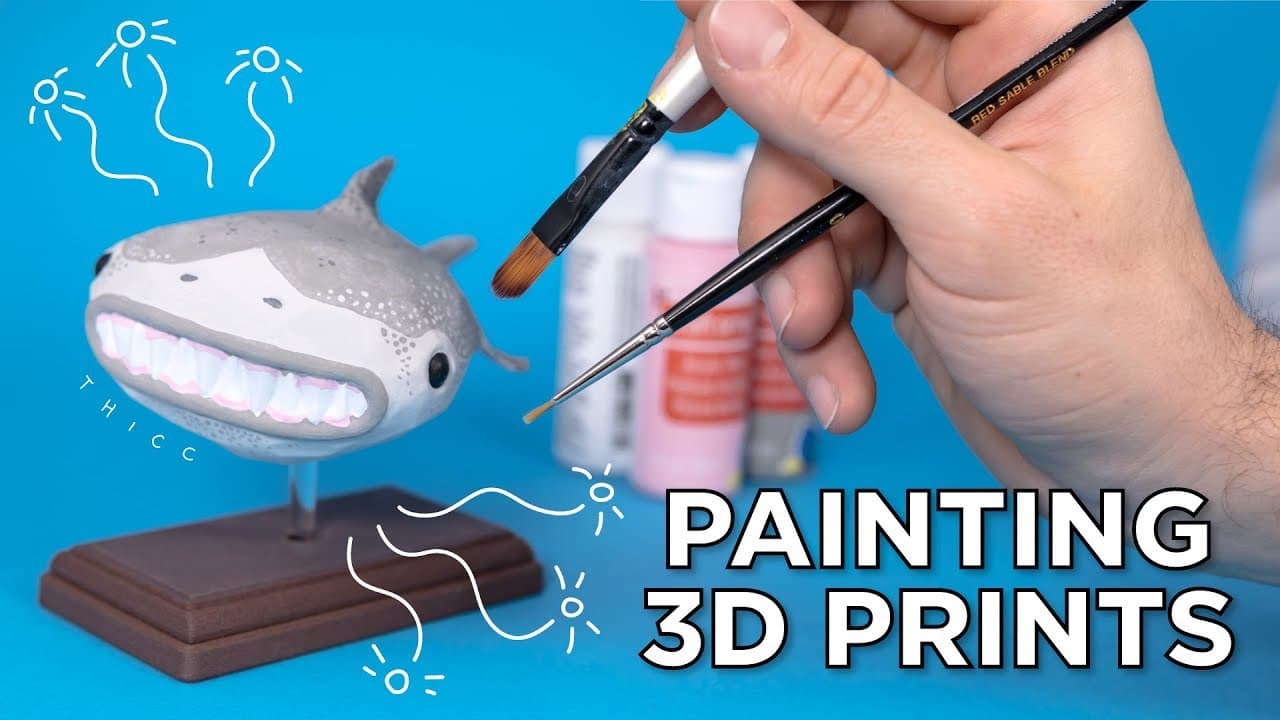
Visual Aid:
- [Google Image Search “Post-processing 3D prints”]
Encouragement:
“Post-processing makes your prints look finished and professional!”
5. Planning Layout and Decoration (10 minutes)
Action Steps:
-
Plan Placement:
- Action: Groups decide where each printed item will go in the model house.
- Question: “Where does your furniture or tool fit best in the room?”
-
Decorate and Personalize:
- Action: Students begin decorating their printed items with paint and additional details.
- Prompt: “Think about how colors and decorations can make your items look realistic and fun.”
Encouragement:
“Your creativity makes our model house unique and special!”
6. Repairing and Refining Designs (5 minutes)
Action Steps:
-
Identify Needed Repairs:
- Action: Groups discuss any problems identified earlier and decide how to fix them in TinkerCad.
- Question: “How can we adjust our design to fix this issue?”
-
Implement Changes:
- Action: Students make simple adjustments to their digital designs to improve printability and functionality.
- Suggestion: “Maybe you can thicken a thin part or simplify a complicated shape.”
Encouragement:
Great job today! We know that designing, printing, and refining your projects can take time, and it’s okay if everything isn’t finished just yet. Remember, we have Session 10 to handle any remaining tasks and to showcase your amazing creations. Keep up the fantastic teamwork and creativity you’ve been showing. Every step you take brings your projects closer to being complete, and we’re excited to see your hard work shine during the presentations. Don’t worry about perfection—what matters most is your effort and the fun you’ve had along the way!
Keep up the awesome work, and see you in our final session!
Glossary
I. Scale: A ratio that shows how much something is made bigger or smaller compared to the real thing.
II. Post-Processing: The steps taken after printing, like removing supports, sanding, and painting to finish the printed object.
III. Printability: How easy it is to successfully print a 3D model without problems.
IV. Iteration: Making changes and improvements to a design based on feedback and testing.
References and Teacher’s Guide
Ideas for Students and Basic Implementation:
-
Removing Supports:
- Implementation: Use pliers gently to pull off support structures.
- Design Tip: Ensure the support points are easy to access without breaking the model.
-
Sanding:
- Implementation: Sand edges and surfaces to smooth out rough areas.
- Design Tip: Use finer grit sandpaper for a smoother finish.
-
Painting:
- Implementation: Apply non-toxic paint evenly to decorate and personalize items.
- Design Tip: Use small brushes for detailed areas.
-
Repairing Designs:
- Implementation: Adjust dimensions or simplify shapes in TinkerCad to fix print issues.
- Design Tip: Test print a small part of the design to ensure changes work before printing the whole item.
Teacher’s Resources:
- Guide to TinkerCad (link to separate document)
- Guide to Cura (link to separate document)
- Getting Started with M3D Enabler (link to separate document)
For suggestions, improvements, and corrections, feel free to reach out at shayaanhaider@gmail.com
.